

Microsoft 365 apps are available on PC, the web, and mobile devices. I primarily use Microsoft for business, so my posts will be focused on the apps available with business subscriptions.
Here’s an overview of some key Microsoft 365 apps for business and their primary uses:
Teams is a workspace for real-time collaboration, communication, meetings, file and app sharing, and even the occasional emoji! It brings everything together in one place, making it accessible to everyone. Each Teams site contains Channels, dedicated sections within a team to keep conversations organized by specific topics, projects, or disciplines.
Outlook is a powerful email software used for:
- Email Management:
- Send, receive, and read emails.
- Organize your inbox to focus on important messages.
- Manage contacts and maintain an address book.
- Calendar and Scheduling:
- Share and manage calendars.
- Schedule meetings, appointments, and reminders.
- Stay organized with event notifications.
- File Sharing and Collaboration:
- Share files from the cloud (OneDrive or SharePoint) with recipients.
- Collaborate on documents and projects.
- Access emails, contacts, and calendars across devices.
OneNote is your very own digital notebook. Whether you have a million ideas, a million things to do, or a million things to remember, OneNote is the perfect app for capturing pretty much everything. In OneNote, notebooks never run out of paper, and you can search and find important information quickly. Plus, your notebooks are stored online, so you can access them on any of your mobile devices.
I use OneNote for everything from a personal diary, collecting recipes, meeting and webinar notes, brainstorming ideas, and as a policies and procedures manual. One feature I truly appreciate is the ability to add Outlook tasks from OneNote. OneNote and Outlook work together seamlessly; you can insert meeting details and send notes via email. I will do a deeper dive on OneNote in the future. OneNote functionality includes:
- Type notes or record audio at your laptop.
- Sketch or write ideas on your tablet.
- Add pictures from your phone.
- Freely move notes around the page.
- Organize pages into sections.
- Keep your sections in one or more notebooks.
- Switch devices and pick up right where you left off.
- Share your notebooks with others for collaborative work.
Planner is a project management tool within Microsoft 365 that helps organize tasks, assign work, and track progress within teams. It simplifies task scheduling, to-do lists, and collaboration for teams. Key features include:
- Kanban Boards: Organize tasks visually.
- Content-Rich Tasks: Attach files, create checklists, and add labels.
- Integration with Microsoft Teams: Collaborate seamlessly.
- Visual Status Charts: Track progress.
To Do is a task management application that helps you organize and prioritize your daily tasks and projects. Here’s a brief overview:
- Smart Planning: Utilize the My Day feature for intelligent, personalized daily task suggestions.
- Cross-Platform: Access your tasks anywhere with apps for desktop, mobile, and web.
- Task Management: Break down tasks into steps, set due dates, and add reminders to stay on track.
- Integration: Seamlessly syncs with Outlook Tasks for comprehensive task management.
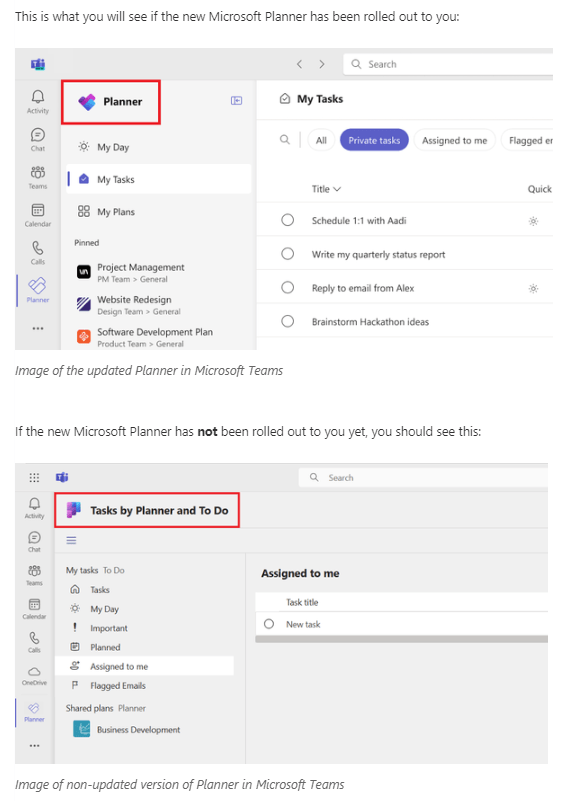
And my favorite! Tasks by Planner and To Do in Microsoft Teams combines individual tasks from Microsoft To Do and Outlook with team tasks from Planner, creating a cohesive platform for efficient task management. I live by this app! Between Tasks by Planner and To Do and my calendar, I stay organized and never drop a single ball. Microsoft is constantly working to improve their products, so be sure to check out this update: The new Microsoft Planner begins roll out to General Availability!
OneDrive is a versatile cloud storage service that allows you to securely save, share, and access your files across all your devices. Here are some key features:
- Organize and Find Files: Quickly locate the files that matter to you.
- Cross-Device Access: Easily access, edit, and organize your files from Windows, macOS, iOS, and Android devices. Changes sync across all your devices, and you can even access files offline.
- Back Up Your Files: OneDrive ensures your important files, photos, apps, and settings are backed up. No matter what happens to your device, your data remains safe.
- Real-Time Collaboration: Work together with colleagues using Office apps in real time.
- Share Privately: Share files and photos with family, friends, or colleagues both inside and outside your organization.
SharePoint is a collaboration platform for creating intranet sites, document libraries, and team sites. It is a versatile system that empowers business teams to work together effectively. It combines workflow applications, “list” databases, and other web parts to facilitate collaboration. Organizations using SharePoint gain control over access to information and can automate workflow processes across different business units. Key features of SharePoint include:
- Collaboration: SharePoint enables teams to collaborate seamlessly by creating websites, sharing content, and accessing information from any device.
- Document Management: It serves as a secure repository for files, allowing efficient organization, search, and retrieval.
- Workflow Automation: Automate business processes, approvals, and notifications using SharePoint workflows.
Stay tuned for an upcoming blog post on SharePoint, its relationship to Teams and how it compares to OneDrive.
What Microsoft questions do you have? Let me know in the comments!
If you need help understanding how to use MS 365, schedule a 15-minute introductory meeting with me. I love supporting folks in becoming more proficient and efficient in using Microsoft 365 apps.

 The Admin Unicorn