
Microsoft OneNote is my go-to digital note-taking application that provides a single place for keeping my notes, research, tasks, plans, lists, and a whole bunch of other stuff. Whether you’re using it for home, work, or school, OneNote allows you to capture and organize everything and anything you need to remember.
In this post, I will review the basic structure, key features, and fun ways you can customize OneNote. I will also discuss some things that annoy me about OneNote and my suggestions for what you can do about those issues.
Basic Structure of OneNote
Infinite Canvas: Unlike traditional paper notebooks, OneNote pages are like infinite canvases. You can click and type anywhere, insert pictures, attach files, or even record your voice. It’s a flexible space for capturing ideas and thoughts. You’re not restricted to fixed pages; instead, you can create and organize content freely. Whether you’re jotting down ideas, sketching diagrams, or pasting images, the infinite canvas allows flexibility.
Organizational Structure: Notes are organized into metaphorical notebooks, sections, and pages. You can create separate notebooks for different topics (e.g., work, personal, hobbies), and within each notebook, you have sections and pages to further organize your content.
Integration with Other Apps: OneNote integrates seamlessly with other Microsoft Office apps. For example:
- Outlook: You can send emails or meeting details directly to OneNote.
- Word: You can export OneNote pages to Word for writing essays or reports.
- Excel: You can embed Excel spreadsheets within your notes.
Collaboration: You can use OneNote individually or collaborate with others. Invite friends, family, co-workers, or classmates to share a notebook. Multiple people can edit the same notebook simultaneously, making it great for group projects or meeting notes. Everyone can add text, images, files, and more, regardless of their location.
Basic Features of OneNote
Audio and Video Recording: OneNote allows you to record audio or video directly into your notes. This is handy for dictating notes, capturing lectures, interviews, or brainstorming sessions.
Web Clipping: Use the OneNote Web Clipper browser extension to save web pages, articles, and snippets directly into your notebooks. It’s like having a digital scrapbook.
Math Equations: OneNote has a built-in equation editor. You can write complex math equations using LaTeX syntax, and it will render them beautifully.
Draw and Handwriting Recognition: If you have a touchscreen device or a stylus, you can draw directly in OneNote. It also converts your handwritten notes into searchable text.
Customizing Your OneNote Notebook
Tagging and Search: One of my favorite features are the Tagging and Search functions. OneNote lets you tag specific content with labels like “Question,” “To-Do,” “Important,” or you can create custom tags. You can then search for these tags across all your notebooks, making it easy to find, categorize, and prioritize important information. Whether it’s a simple checklist or a detailed project plan, you can mark what’s essential and assign action items.
Here’s a quick tutorial for using Tags and Search in OneNote.
Outlook Tasks: Another of my favorite features is the ability to create Outlook tasks directly from OneNote. Here’s how:
1. In OneNote, select the words that you want to be your task.

2. Click “Outlook Tasks”

3. In the menu that appears, click the arrow next to the Outlook Tasks button and choose a reminder.

4. A flag appears next to your task in OneNote.

5. Navigate to “My Tasks”

6. Your Task is added to Outlook Tasks/MS To Do/Planner in Teams (depending on which app you use).


Templates: OneNote offers various templates for different purposes—meeting notes, project planning, travel planning, and more. These templates provide a structured starting point. Here’s a quick tutorial for using Templates in OneNote.
Cross-Platform Sync: Your OneNote notebooks sync across devices (Windows, Mac, iOS, Android). Your notebooks are stored online, so you can start a note on your computer, continue on your phone, and finish on your tablet.
Some Challenges with OneNote (aka Things That Annoy Me)
Version Conflict Messages
If you and another user edit the same part of a page (such as changing the same paragraph of notes) at the same time, OneNote often detects a conflict. To prevent data loss, OneNote creates multiple copies of the page. You’ll see a yellow information bar indicating the problem.
What To Do About Version Conflicts
1. Click on the banner to open the conflict page(s). One or more pages highlighted in yellow will open below the main page.

2. The conflicting information will be highlighted in red. Copy any necessary content from the conflicting page to the original page.
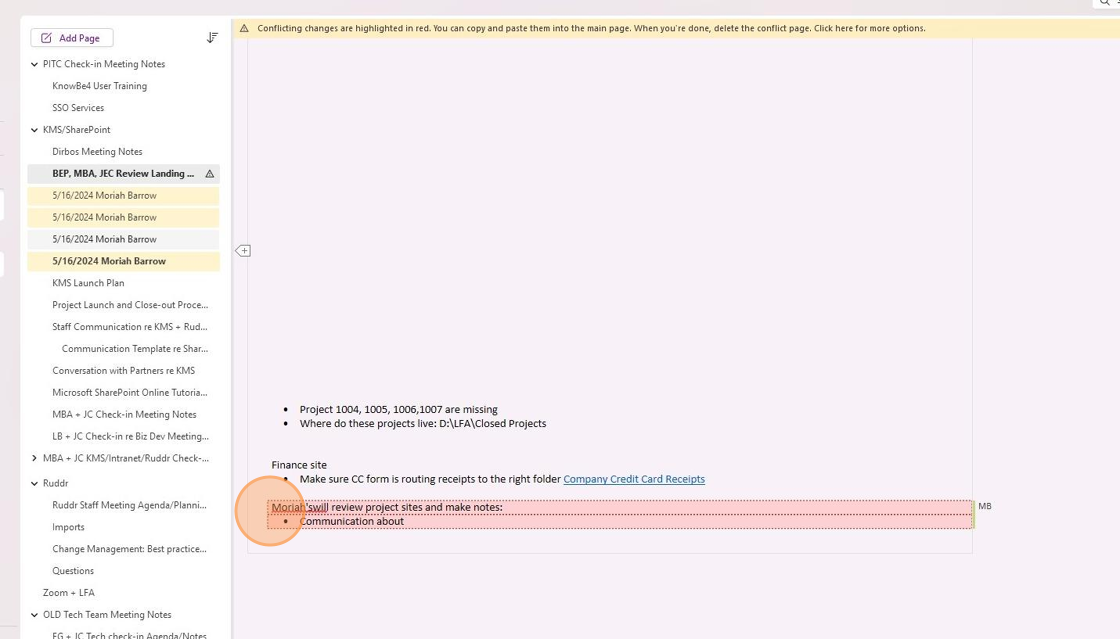
3. Once the information is copied to the original page, right click and select “Delete Conflict Page”

Made with Scribe
Inability to @mention another user in OneNote
Personally, I find it super annoying that there is no way to @mention another user in OneNote like you can in Word, Excel, and PowerPoint. If, like me, this is a feature you would really like to see in OneNote, you can Upvote the feedback to Microsoft to support @mention in OneNote here: Add support for @mention · Community (microsoft.com). This is how Microsoft gets feedback for features users really want, so, generally speaking, the more Upvotes specific features gets, the quicker they will make it happen.
In summary, OneNote is a versatile note-taking tool with rich formatting options and many creative features. OneNote allows you to capture and organize your thoughts, ideas, and research in a flexible and intuitive way with cross-platform availability. OneNote is great for collaboration and sharing. And its integration with the Microsoft ecosystem allows you to insert Excel spreadsheets, Word documents, and more directly into your notes.

 The Admin Unicorn